> For the complete documentation index, see [llms.txt](https://guides.mangoapps.com/llms.txt). Markdown versions of documentation pages are available by appending `.md` to page URLs; this page is available as [Markdown](https://guides.mangoapps.com/user-guide/posts/post-planning-calendar/ticker-tape.md).
# Ticker Tape
### Overview
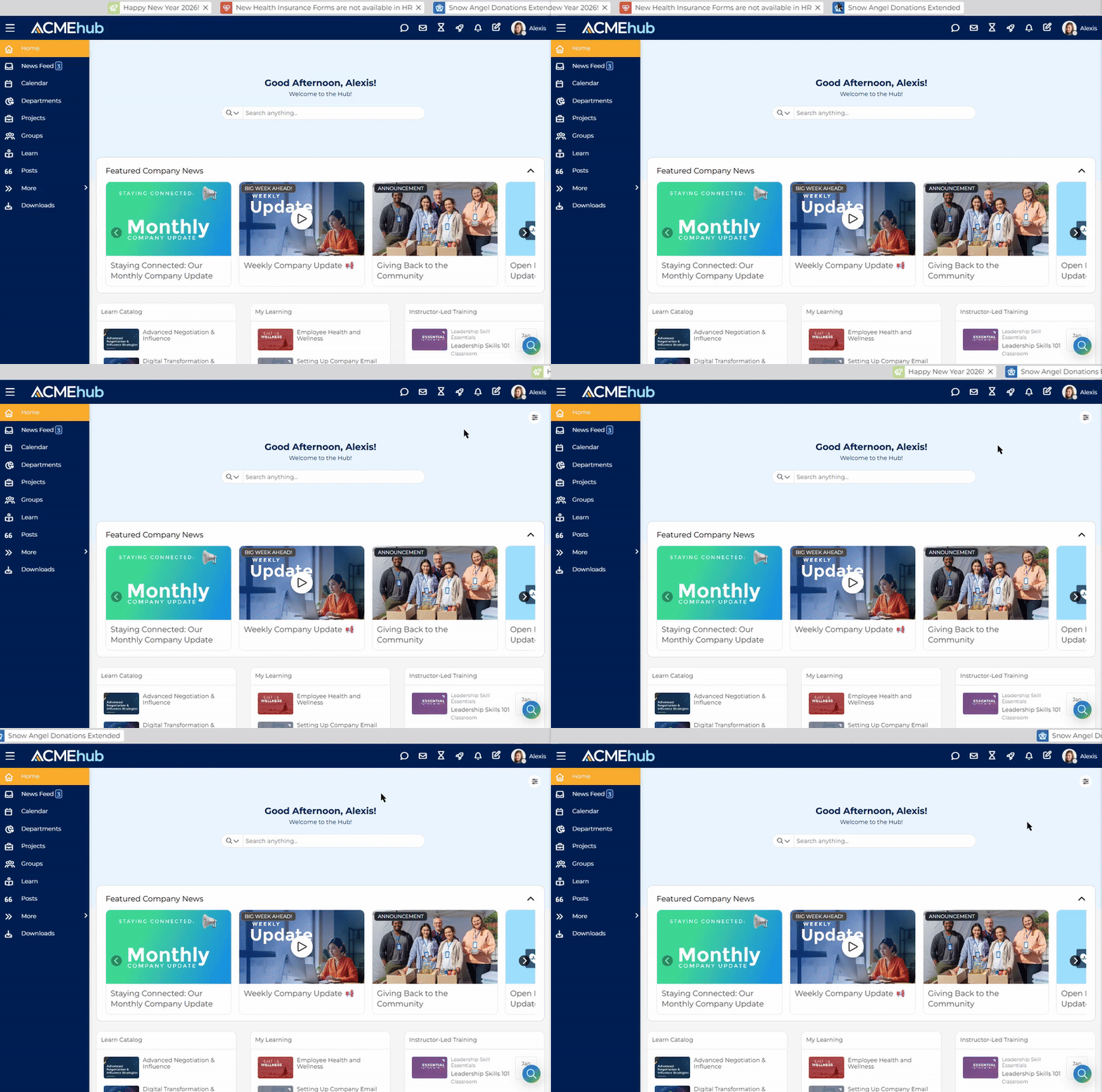
Ticker Tape posts provide a lightweight, high-visibility way to share short messages across the web portal. These messages appear as a rotating banner at the top of the portal and are ideal for time-sensitive announcements, shout-outs, and quick organization-wide updates. Ticker messages are displayed only to the intended audience, ensuring targeted visibility without clutter.
***
### Enabling Ticker Tape Posts
Ticker Tape posts are configured by admins from the Admin Portal under Modules → Posts → Settings by enabling the option to allow ticker tape posts. This feature is disabled by default. When enabled, admins can control who is allowed to create and manage ticker messages, customize the background color, and choose whether messages appear site-wide or only on the Home or dashboard experience.
***
### Creating a Ticker Tape Post
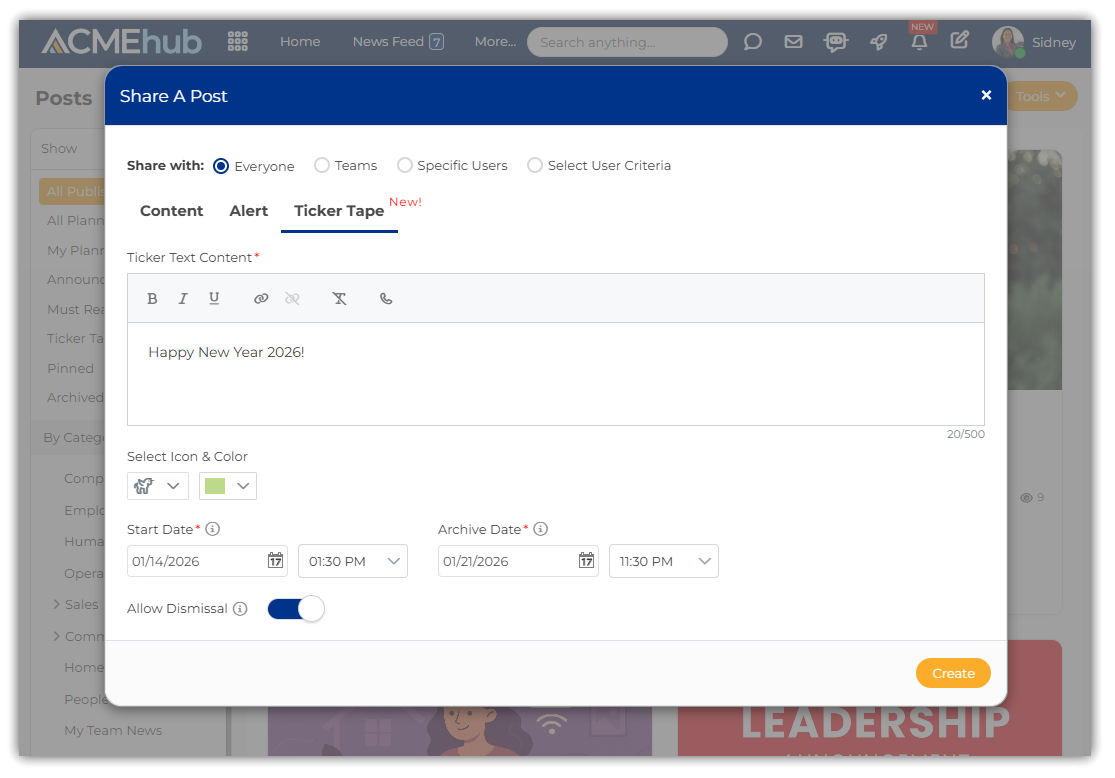
Users with permission to publish ticker messages see a dedicated **Ticker Tape** tab under Compose → Post or when creating a new post in the Posts module.
From here, creators can enter up to 500 characters, add an icon with a configurable background color, and define start and archive dates for automatic scheduling. Ticker messages can include hyperlinks to posts, pages, forms, external URLs, email addresses, or phone numbers. Creators can also allow dismissal so viewers can hide a specific message after viewing it.
Ticker messages scroll from right to left and automatically pause on hover. They are displayed only to the selected target audience and appear either site-wide or on Home, depending on the admin configuration.
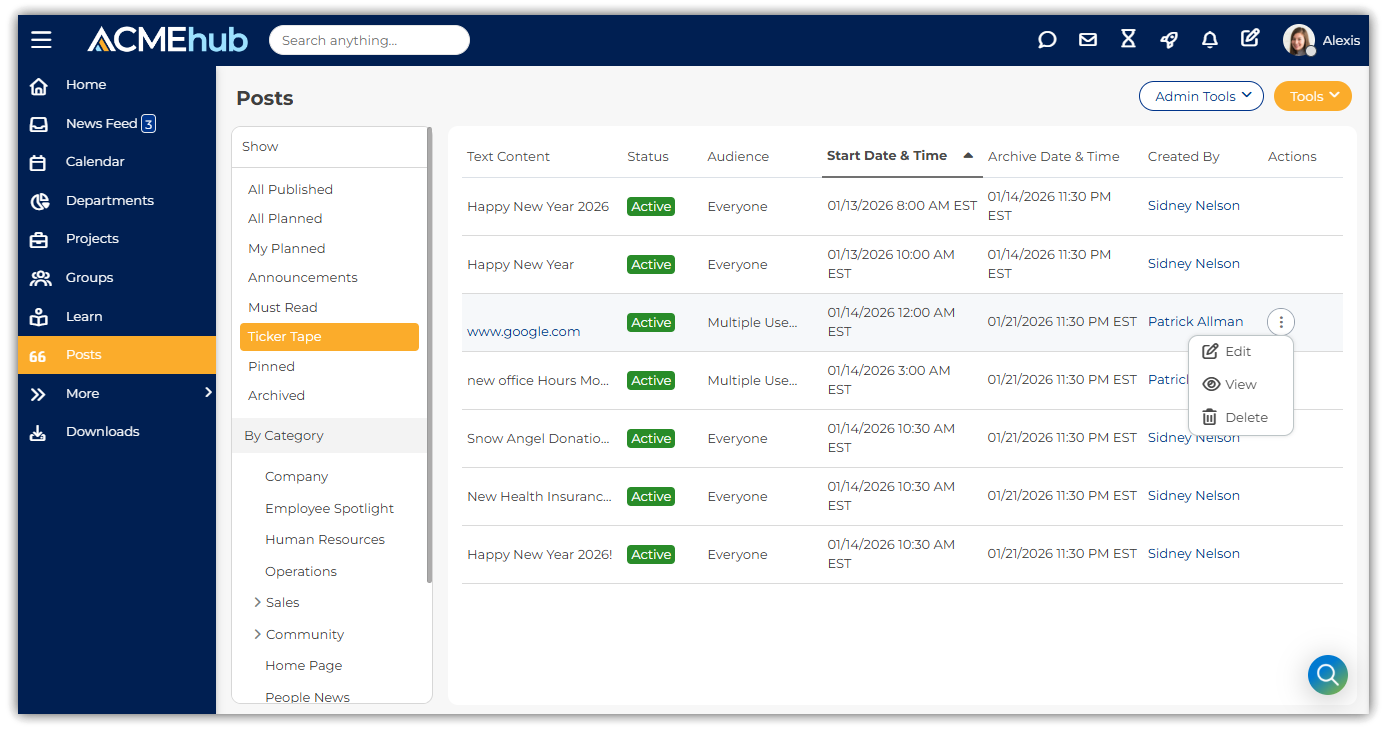
For centralized management, users with the appropriate permissions can access a Ticker Tape filter in the Posts module and on the Company/Posts page. This view allows creators and admins to see all active and scheduled ticker messages and to edit their content and settings both before and after publishing.
{% hint style="success" %}
To support fast, time-sensitive communication, **ticker tape posts bypass post approval, moderation, and governance workflows** and are **available only to domain admins, intranet admins, and other authorized users**.
{% endhint %}