> For the complete documentation index, see [llms.txt](https://guides.mangoapps.com/llms.txt). Markdown versions of documentation pages are available by appending `.md` to page URLs; this page is available as [Markdown](https://guides.mangoapps.com/integrations-guide/workspace/integration-with-github.md).
# Integration with GitHub
### Overview
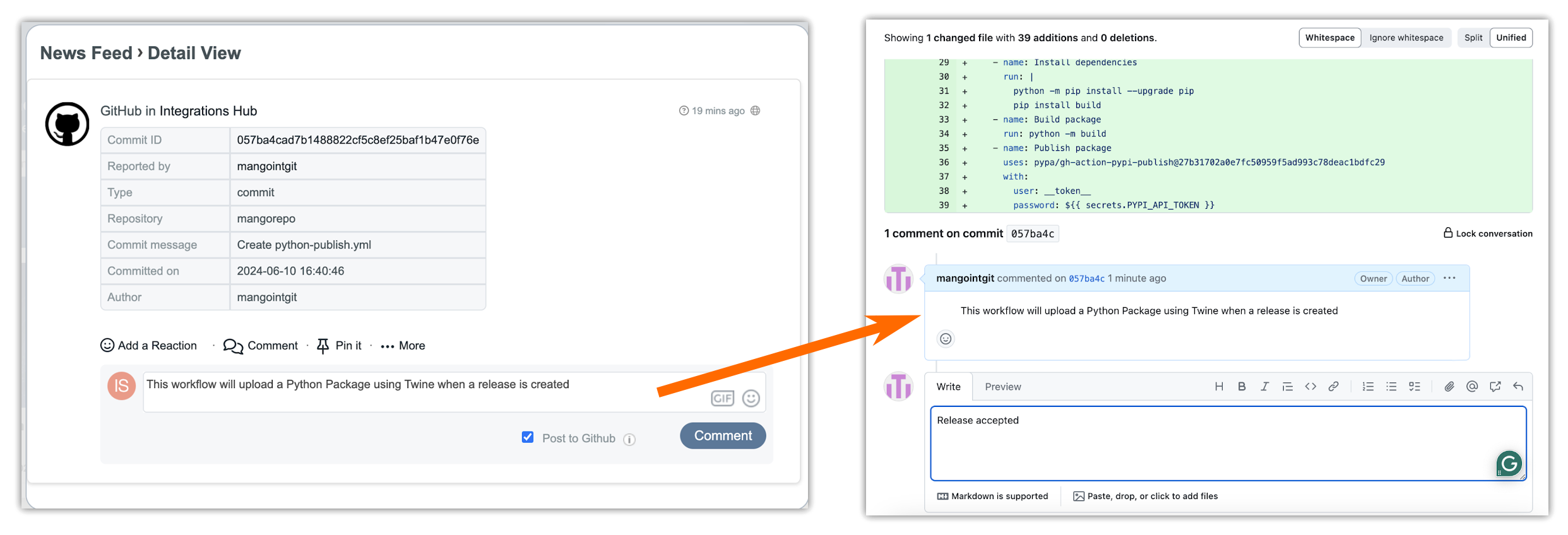
Integrating GitHub with MangoApps offers a centralized experience for team members, ensuring everyone stays on the same page and enhancing collaboration around updates. Key features of this integration include Security & Control, Real-Time Updates, and Team Collaboration. With secure OAuth authentication, you can choose one or more GitHub repositories for notifications, and webhooks are configured via the API to eliminate manual setup. Any activities such as commits, forking, pushes, and pulls in selected repositories are converted into feeds within MangoApps Teams. Moreover, MangoApps users can comment on feeds generated for pull requests and commits.
This integration supports GitHub Free, Pro, Team, and Enterprise Cloud editions, providing real-time notifications, centralized activity tracking, and improved collaborative capabilities within a secure and user-friendly environment.
***
### Role prerequisites to set this integration
To set up this integration, specific roles are required.
* GitHub Admin to set up the GitHub account, repository, and enable the webhook.
* GitHub Developer to merge code to the GitHub branch
* MangoApps Admin to enable the GitHub integration at the domain level
* MangoApps Teams Admin to configure the integration at the team level in MangoApps
***
### Instructions to Setup Github
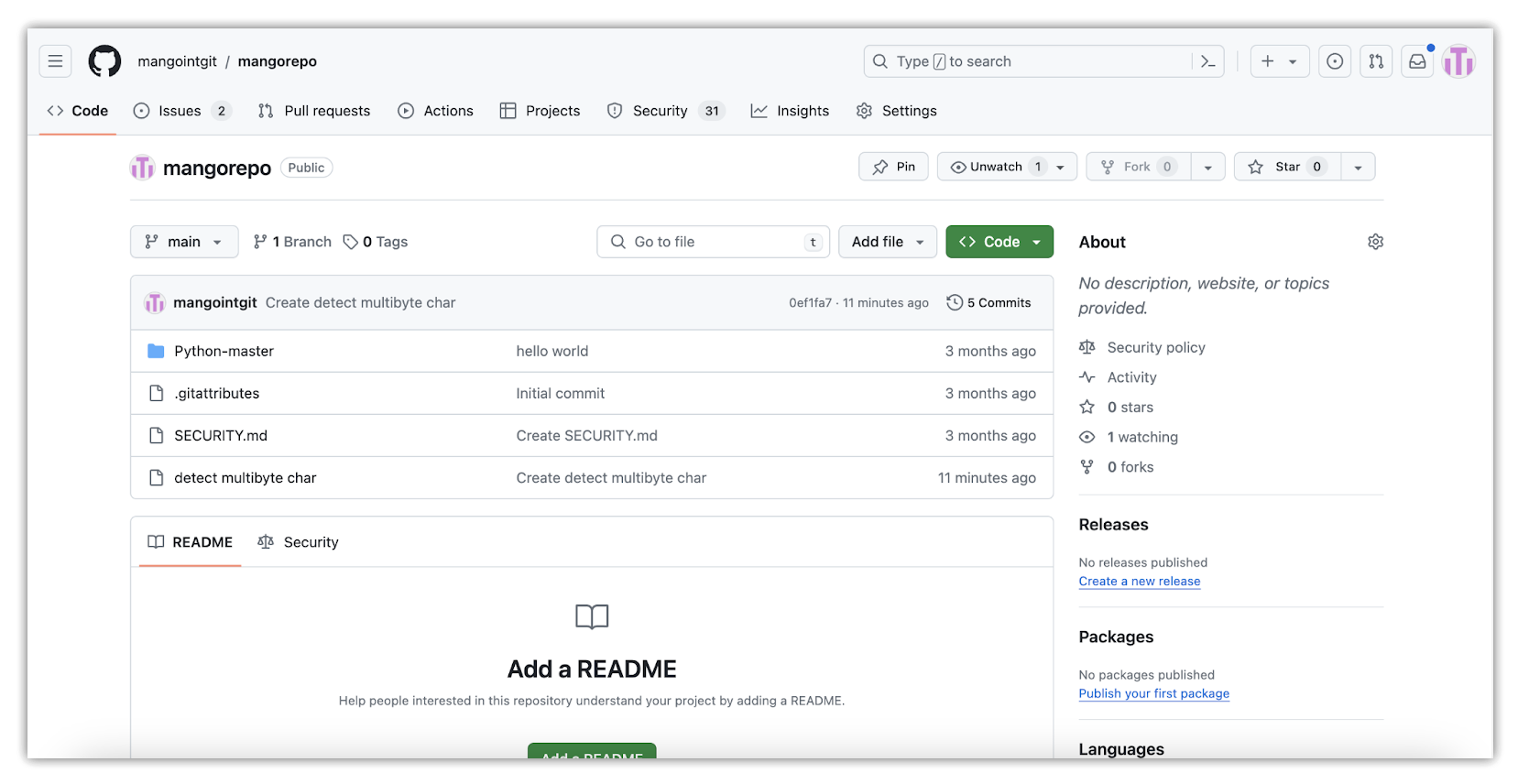
First, the GitHub Admin should create a GitHub account and add the code repository where code will be compiled and merged to a “main” branch.
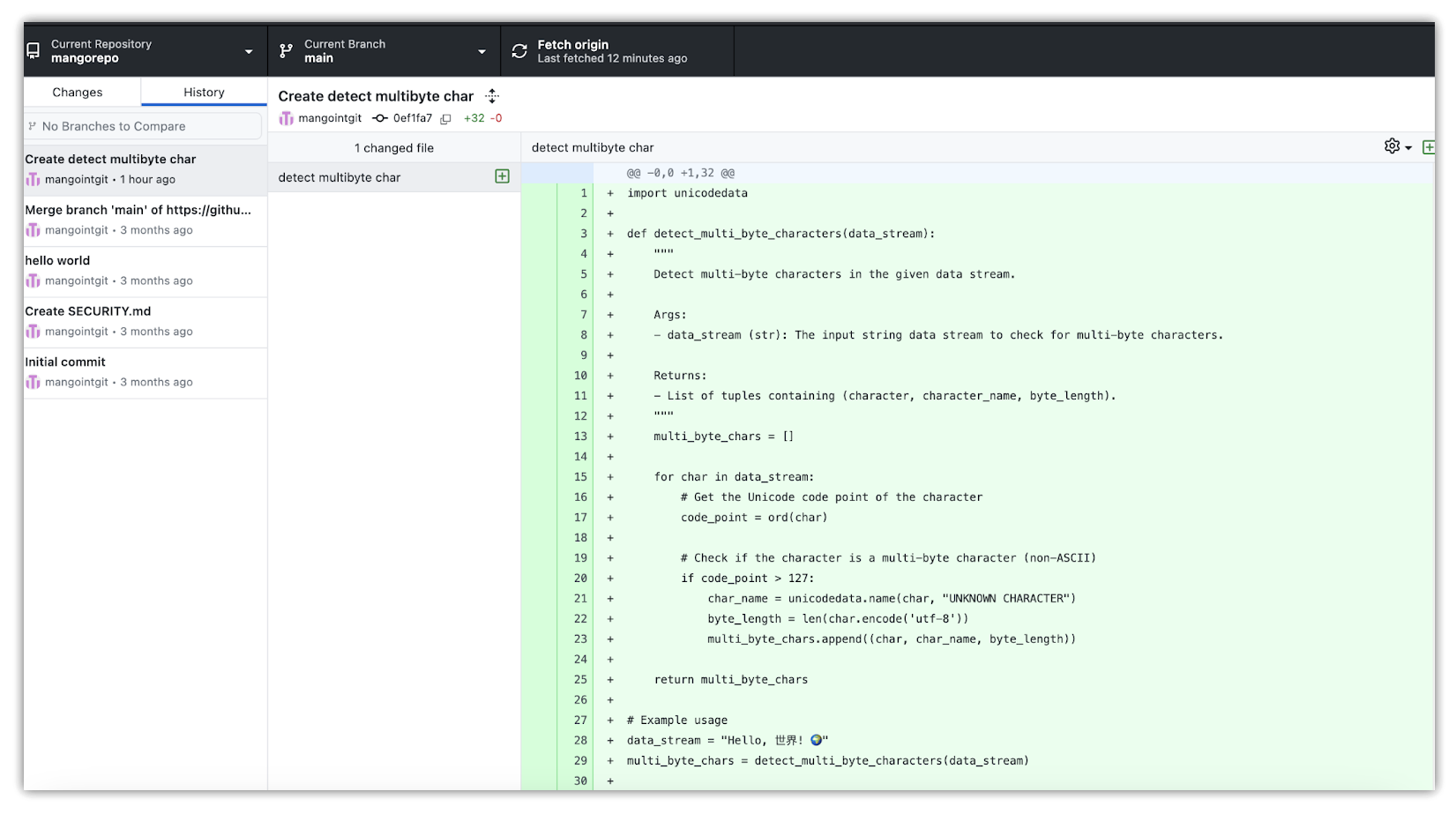
Software Developers can install GitHub Desktop locally to write code in their local repository, commit changes, and push changes to GitHub Cloud.
Next, the integration between GitHub and MangoApps needs to be enabled from the MangoApps side.
***
### Instructions to Setup MangoApps
**Configuration for Domain Admins in MangoApps**
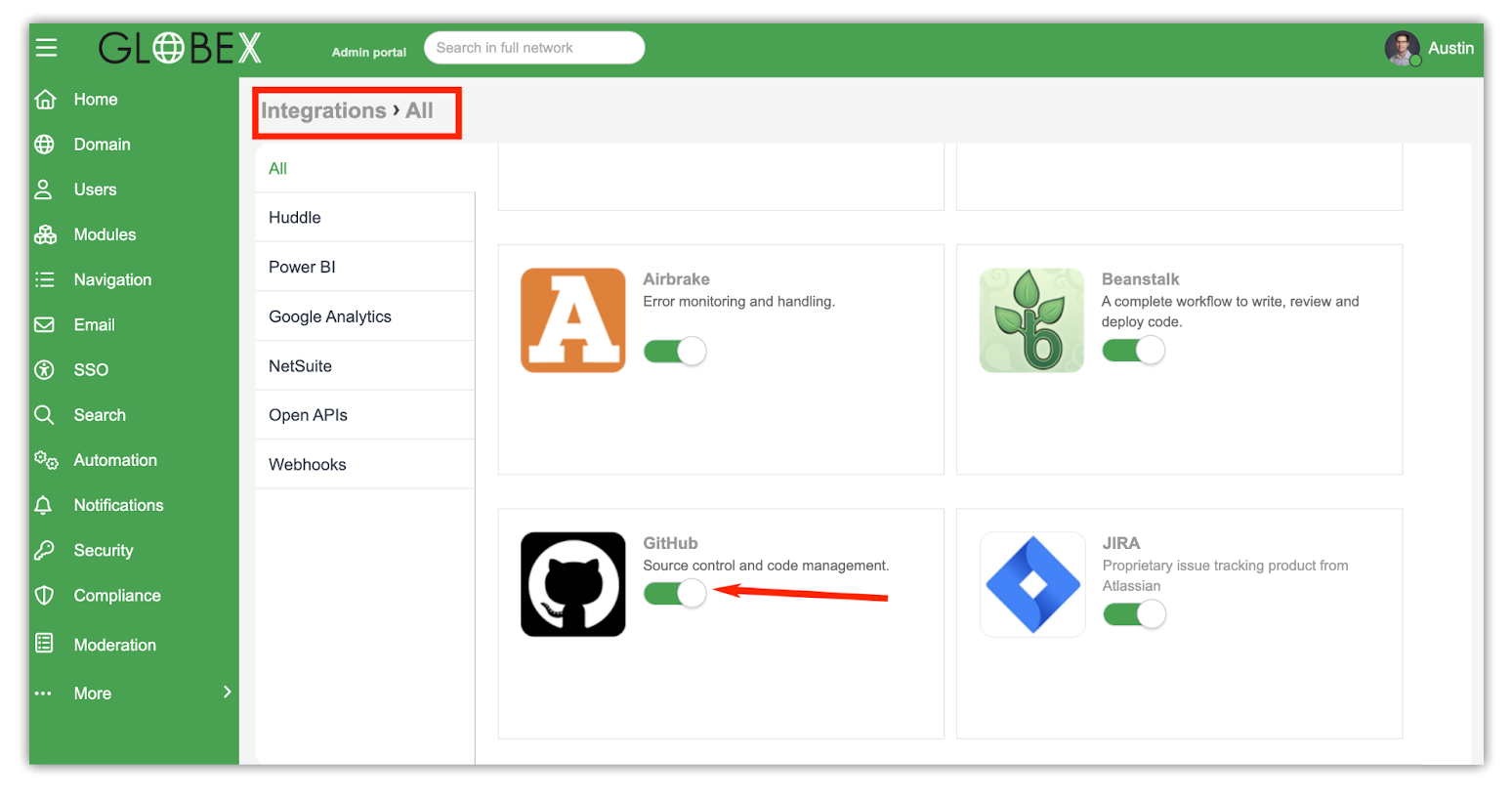
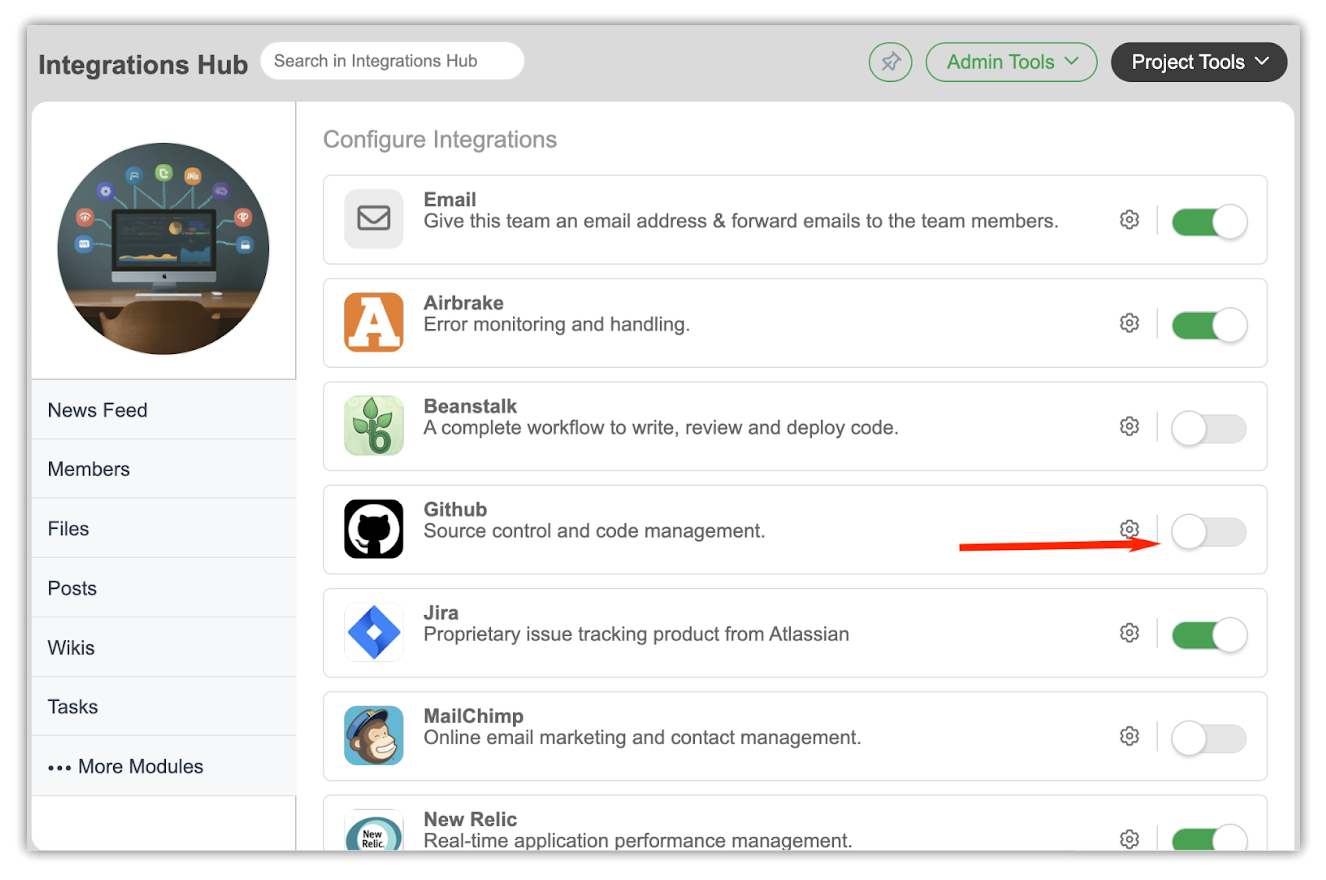
The MangoApps domain administrator needs to open the admin portal, navigate to the Integrations section, and toggle "GitHub" to ON.
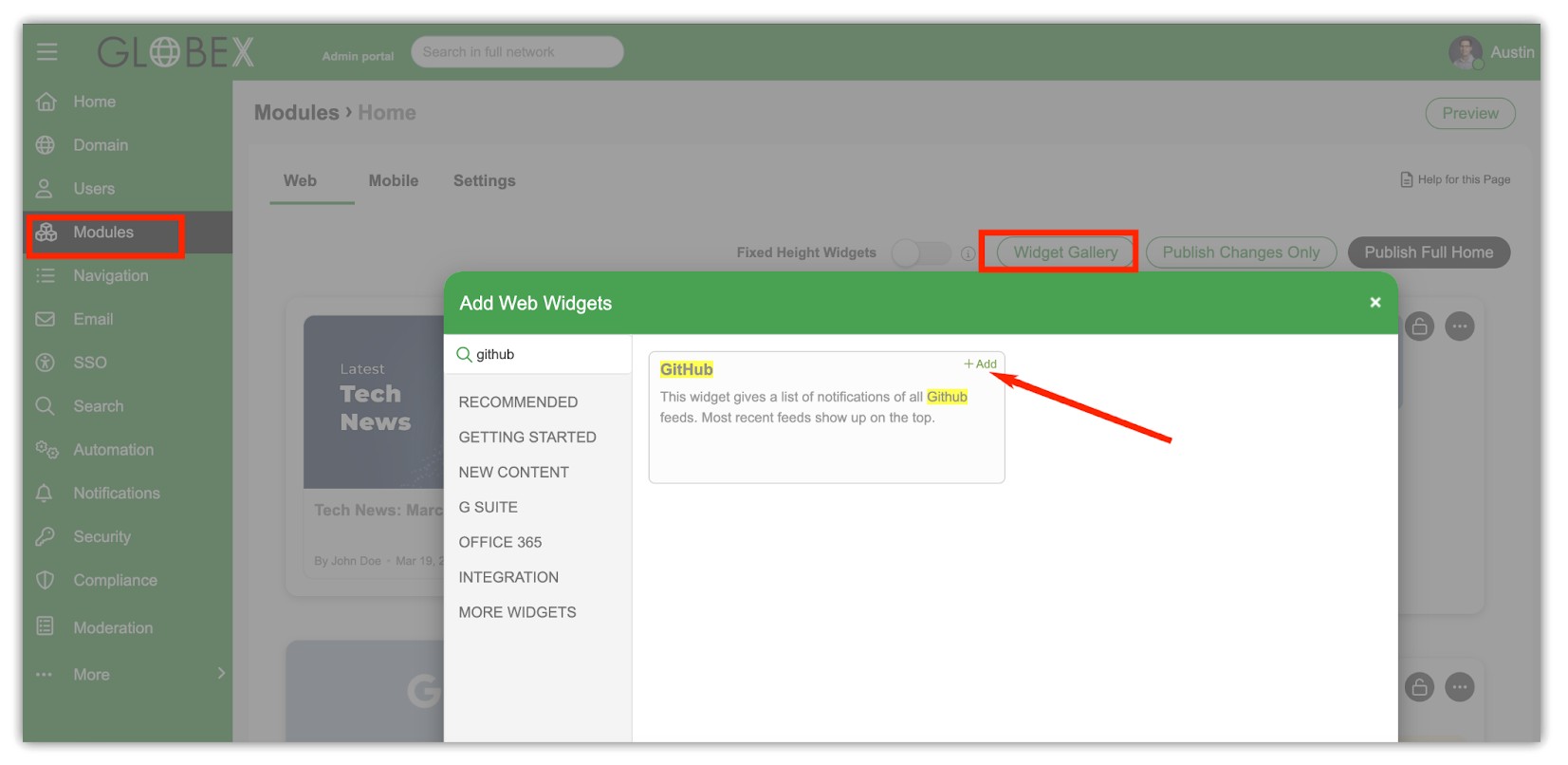
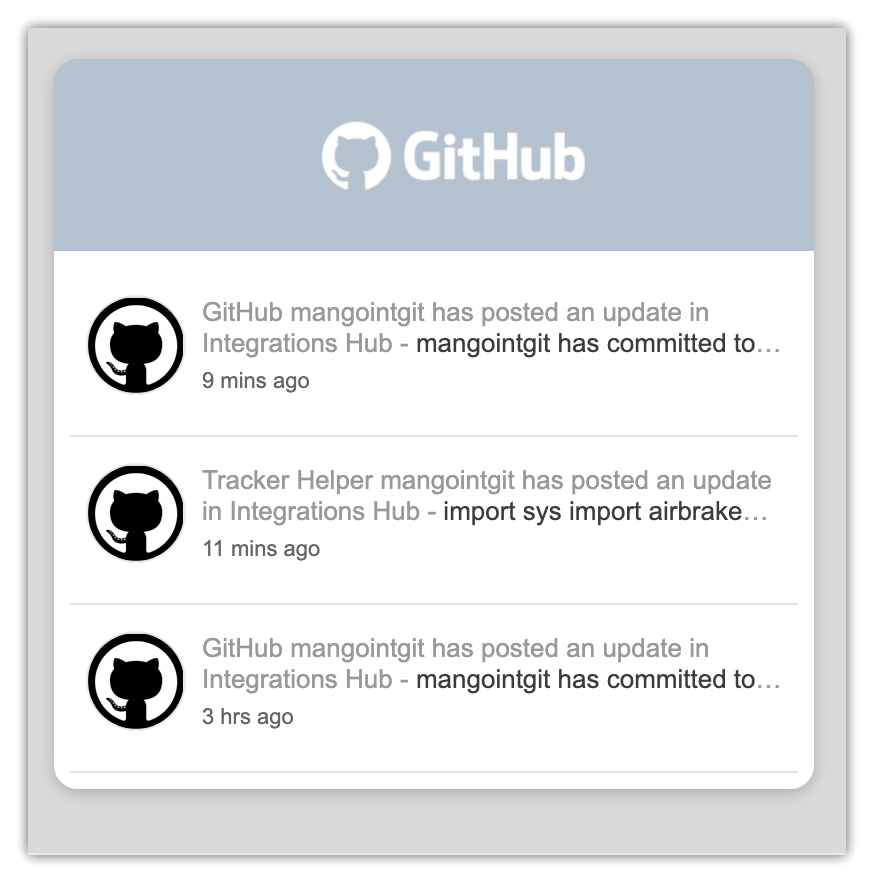
Next, the network administrator should set up the GitHub widget for the HOME page by adding it from the widget gallery.
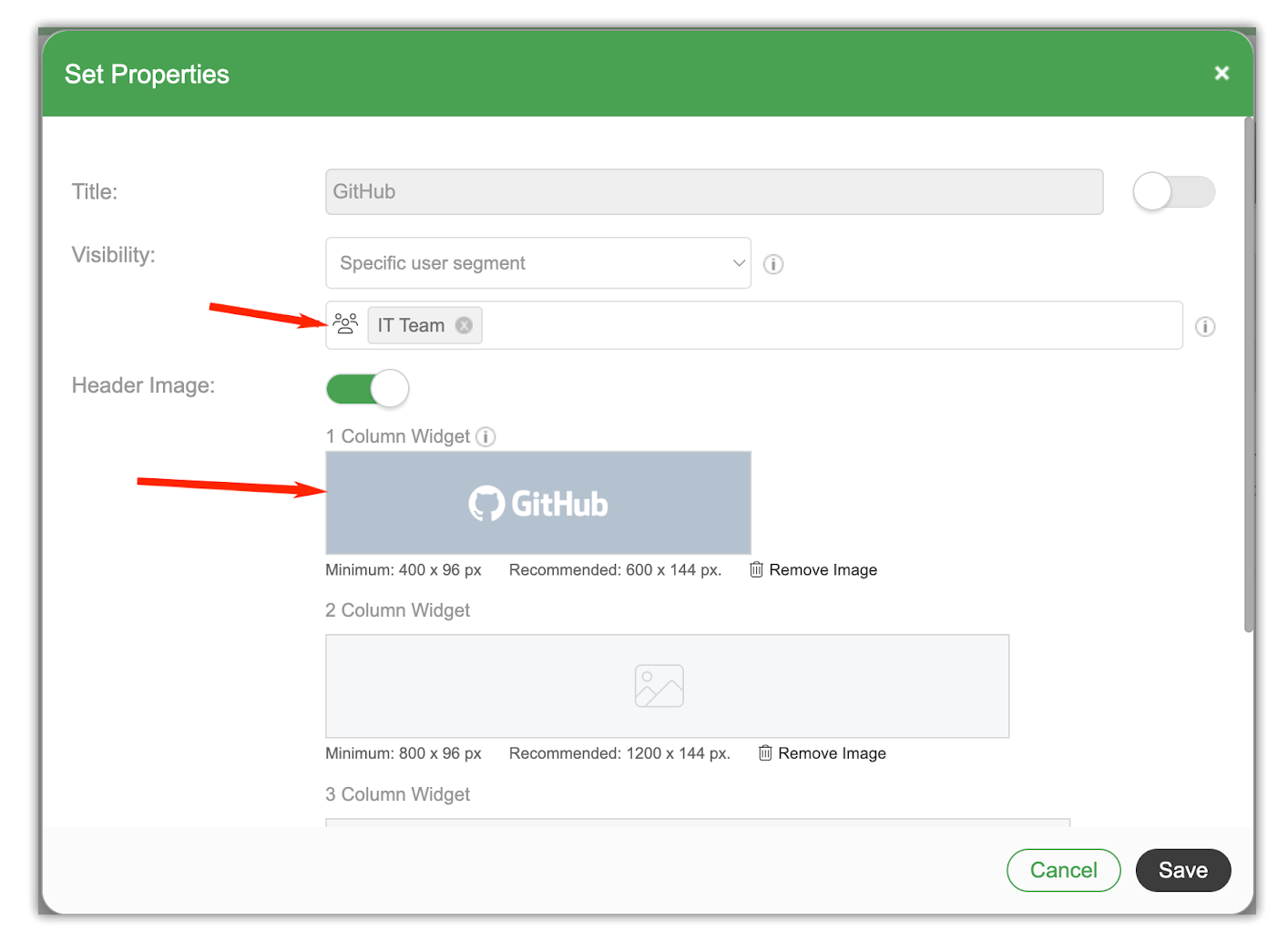
The widget should be configured by adding a header image and setting up the visibility setting for a specific user segment or everyone.
Since GitHub updates are primarily meant for the Software Engineering Team, setting up a user segment will limit these updates to the particular team only.
***
#### **Configuration for Team Admins in MangoApps**
Once the network admin enables GitHub, the team admin needs to enable the integration in the team where GitHub notifications should be received. To do this, the team admin should navigate to the relevant project on MangoApps and enable the integration there by clicking on "Admin tools" > "Configure Integrations" > "GitHub Settings."
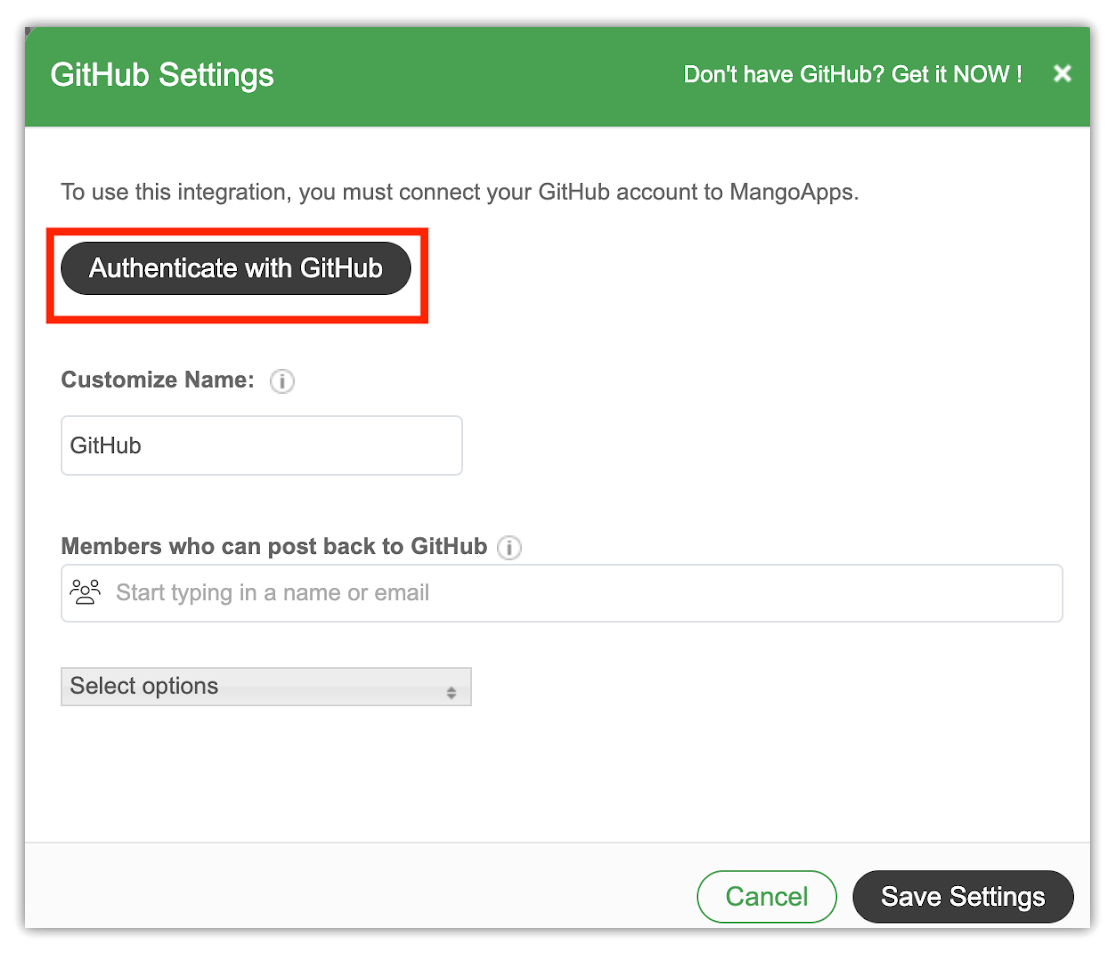
Upon enabling the GitHub integration, a popup will appear, prompting you to authenticate your GitHub account by entering the “administrator” user credentials of your GitHub account and its URL.
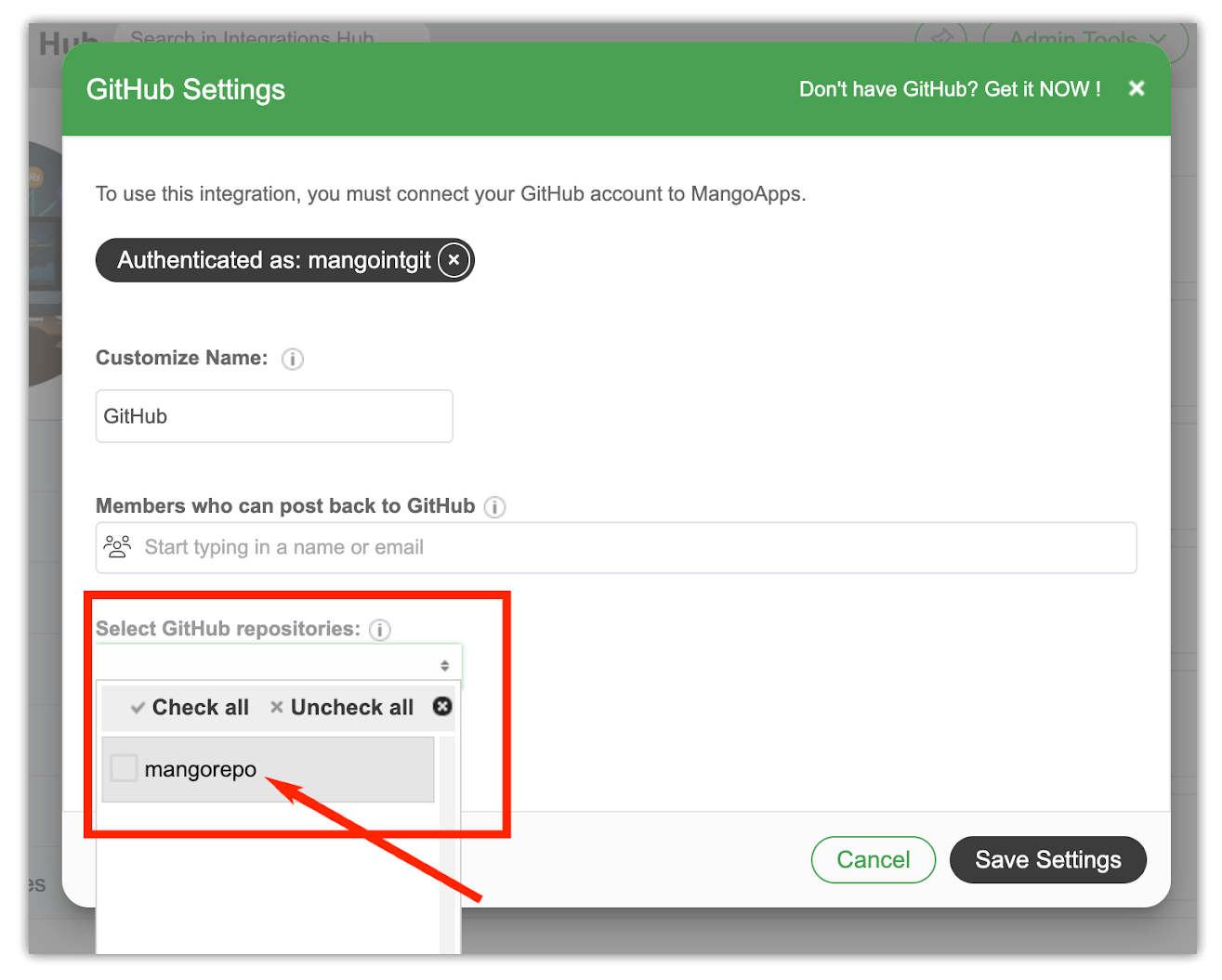
After authenticating successfully, team administrators will need to select the GitHub repository from which the notification is to be synced into MangoApps.
Finally, set up team members who have permission to post comments submitted in MangoApps back into GitHub.
***
### End User Experience
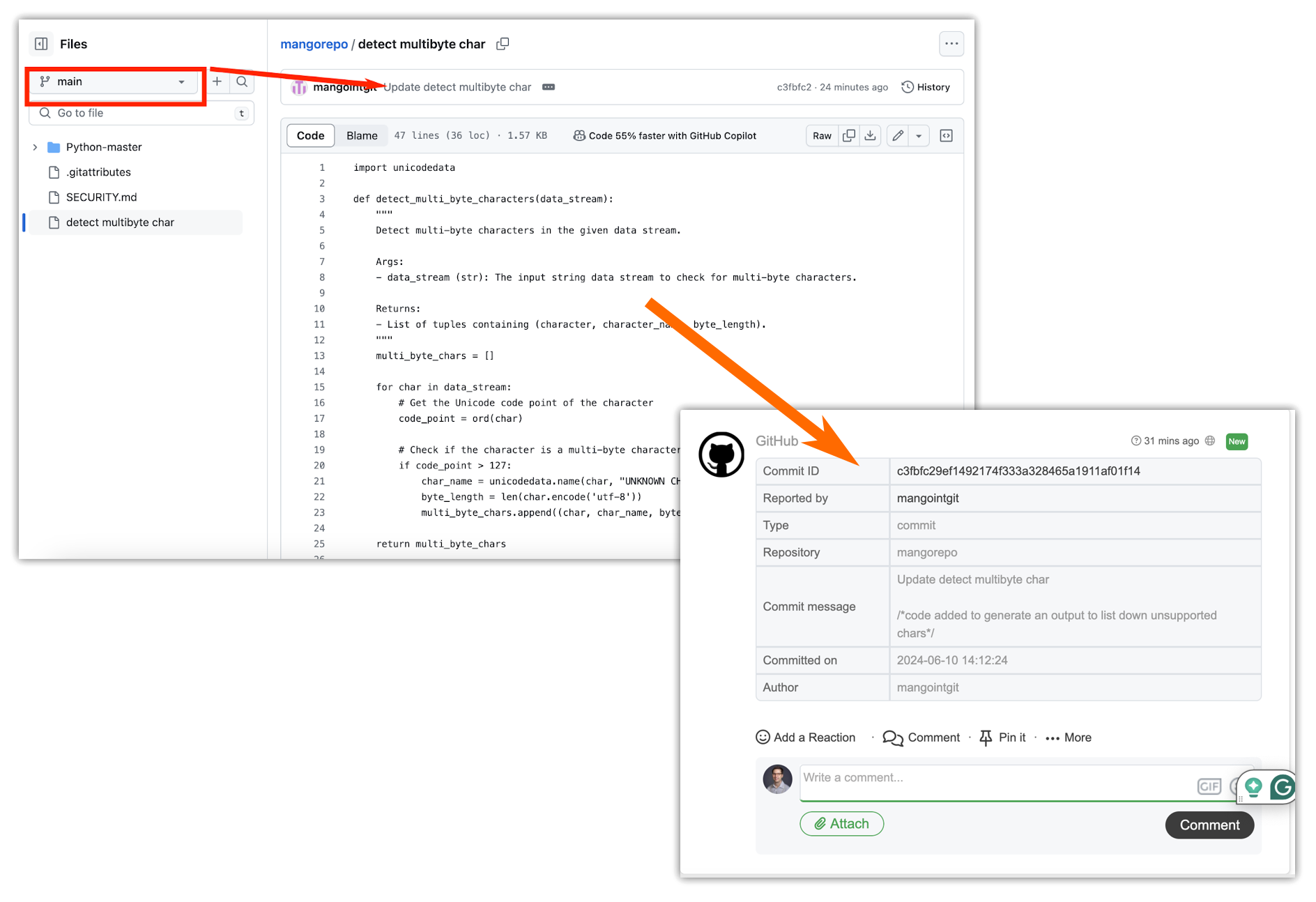
When a Software Developer commits the code in GitHub and merges it to the “main” branch, a notification will be triggered and displayed in the news feed of the team.
Key details of these notifications include:
* **Commit ID**: A GitHub commit ID is a unique 40-character identifier for each commit in a repository, used to reference and manage specific changes.
* **Reported By**: Logged-in GitHub user who had added, updated and modified the code in Github repository.
* **Type**: A commit in GitHub is a snapshot of changes made to a repository's files, identified by a unique ID and accompanied by a descriptive message. In GitHub, besides commits, other key types include branches, tags, pull requests, issues, and releases.
* **Repository**: A GitHub repository is a storage space for a project, containing all the files, history, and revision tracking for the project.
* **Commit Message**: A commit message in GitHub is a descriptive summary of the changes made in a commit, providing context and clarity to collaborators about the purpose and content of the changes.
* **Committed On**: Date and time at which the commit is submitted in the GitHub branch
* **Author**: GitHub developer user
***
#### GitHub Widget
Additional features of the integration include user segment-based dashboard widget configuration, allowing only a specified set of people to see the GitHub widget on their Home page.
***
#### GitHub on the Newsfeed
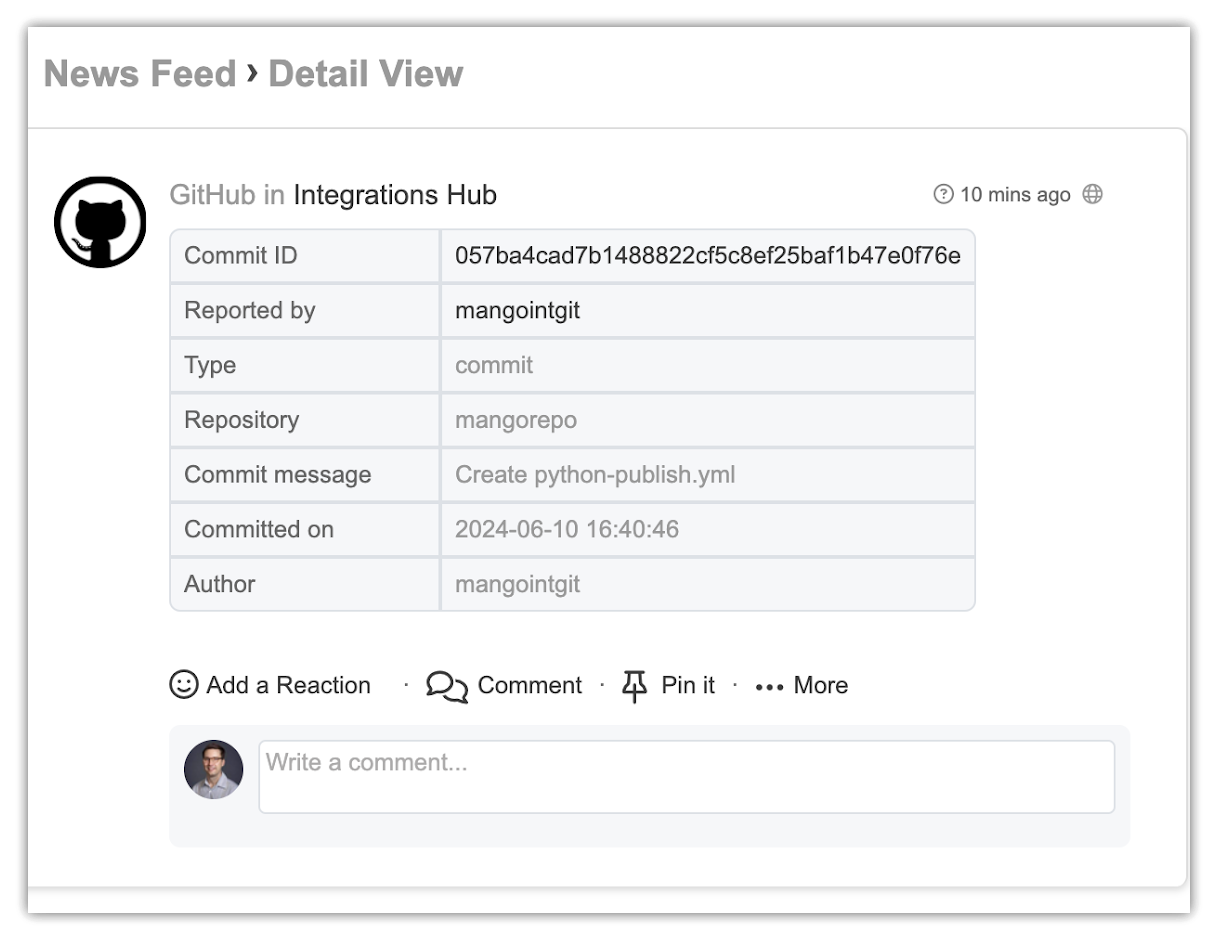
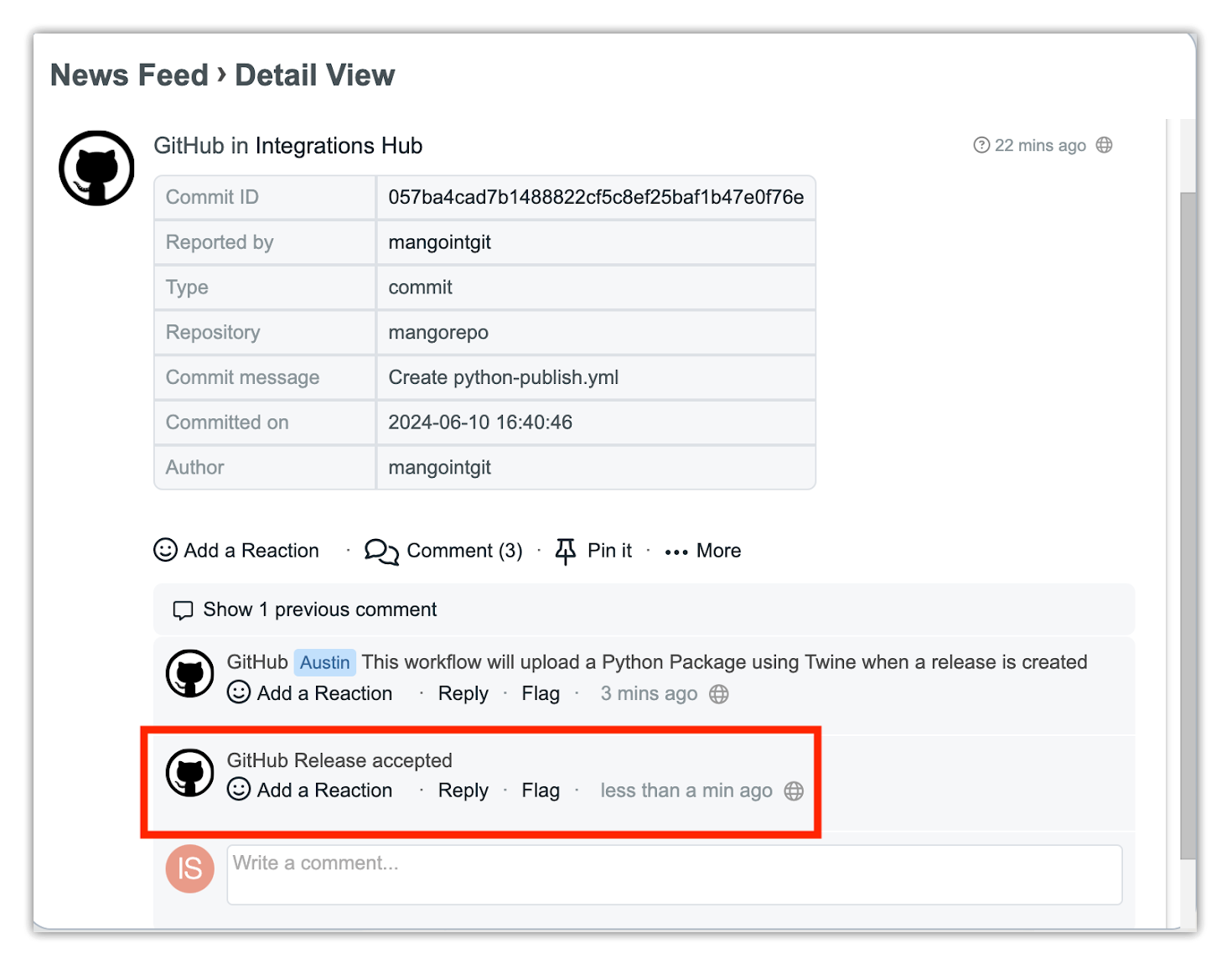
Clicking on widget items pops up the newsfeed with notification details and allows users to reply.
The development team can reply on the GitHub news feed, and the response is submitted to GitHub.
Likewise, GitHub users can read MangoApps submitted comments and reply from GitHub.
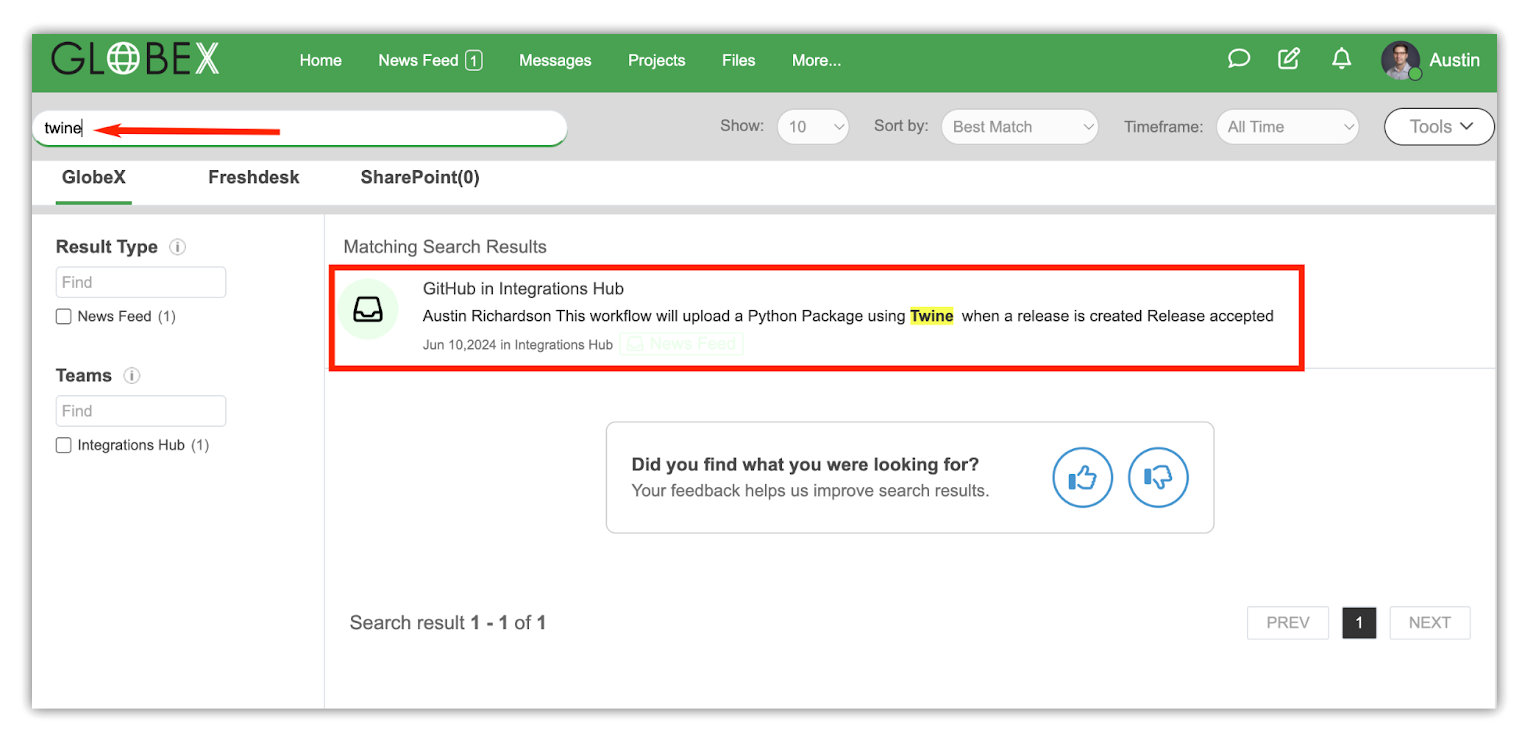
MangoApps users can search GitHub notifications using a search term from the reply of the feed.
***
### Testing Considerations
A team admin or network admin can follow these steps to test the integration:
1. Ensure the authentication credentials in MangoApps are entered correctly
2. Set up the project members who have permission to post back to GitHub
3. Finally, test the workflow and verify that only the required GitHub repository is selected for notifications in MangoApps.
***
### Security Considerations
GitHub admin should share the credentials only with the teams/network Admin of MangoApps to complete the integration.
Any comments posted for internal collaboration should **not** have the **Post to GitHub** checkbox selected.
***
### Rollout Recommendations
Once the MangoApps GitHub integration is complete, team members can view news feeds for all tickets in the MangoApps teams where the integration is enabled. Ensure that all necessary customer service team members are added to the integration settings on the MangoApps side so they can reply to tickets created in GitHub.
***
By following these steps, teams can seamlessly integrate GitHub with MangoApps, enhancing collaboration and ensuring that all team members stay informed about the latest updates and activities.